Get started using Epiphan Edge with EC20
Epiphan Edge lets you remotely manage and control all your EC20 cameras over the Internet using your favorite web browser. Simply pair your EC20 cameras to your free Epiphan Cloud account to get started. Access to Epiphan Edge is enabled by default and you're assigned a default team when you first sign up. For more information about logging into Epiphan Edge, see Login and account information.
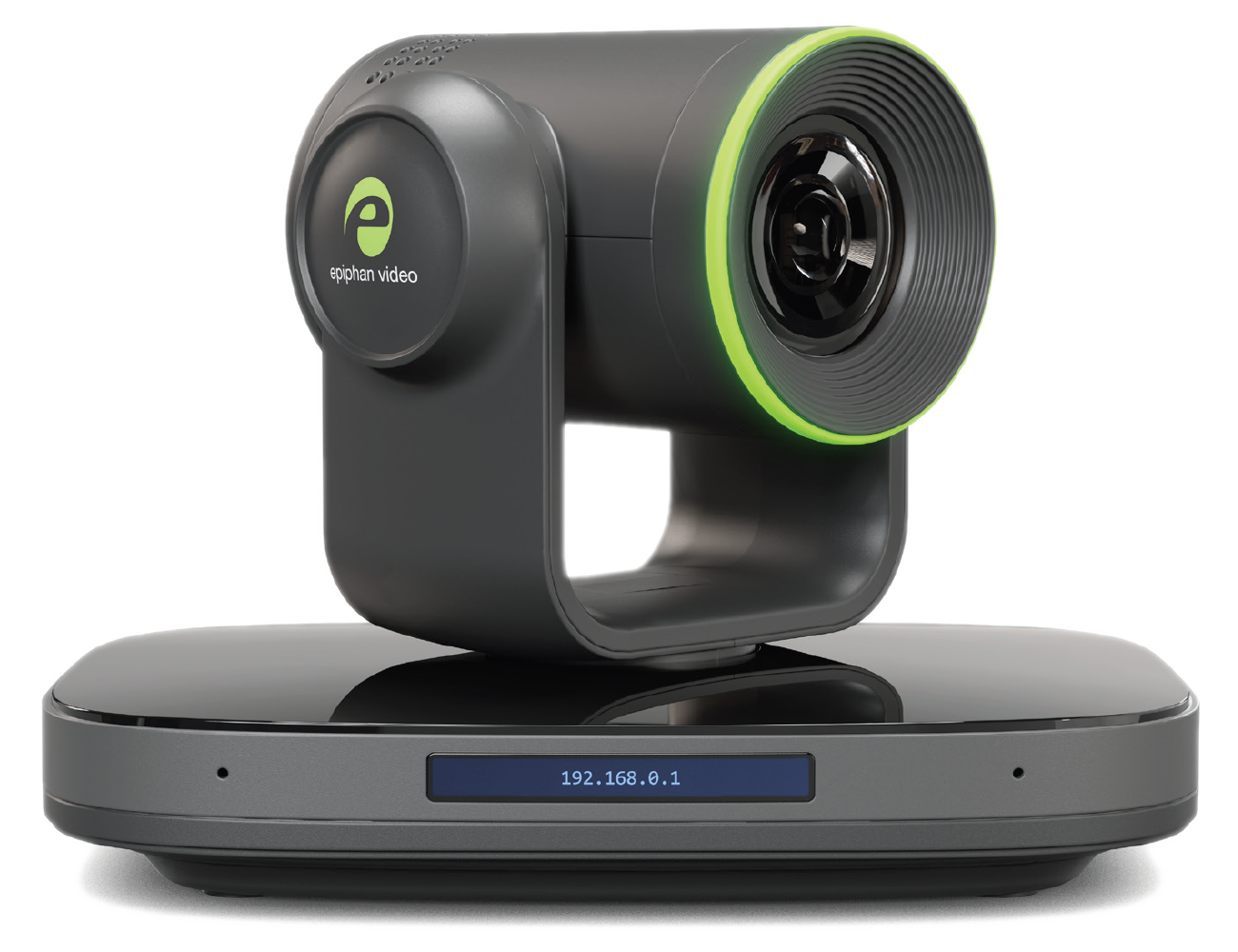
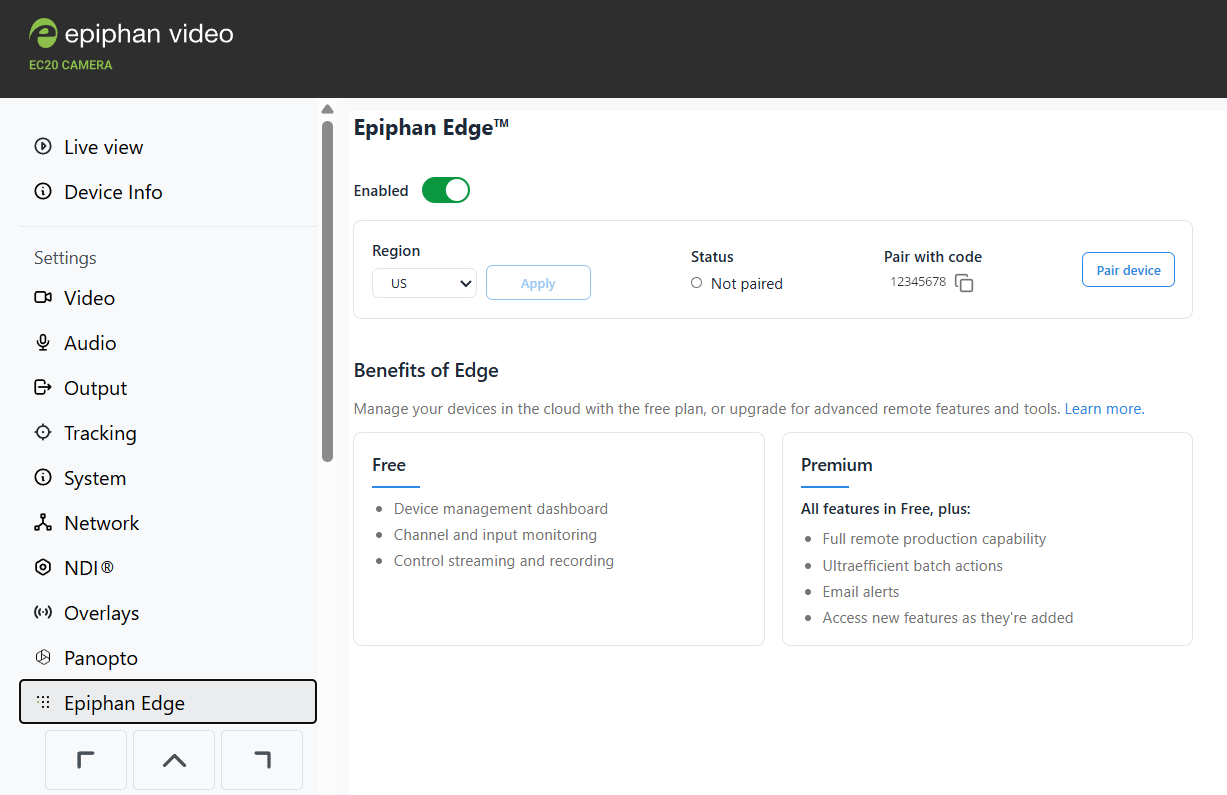
You can pair your EC20 cameras to your Epiphan Cloud team using a link in the Edge section of the web interface or manually enter the pairing code in Epiphan Cloud.
After you pair your device to your Epiphan Cloud team, you can use Epiphan Edge to monitor the video feed, check system settings, see upcoming events, perform off-site rescue troubleshooting, and more.
Before you begin
Before you can pair an EC20 camera to your Epiphan Cloud team and start using it, you'll need:
- An Epiphan Cloud account, see Login and account information.
- An EC20 camera connected to the Internet.
- An admin computer connected to the same network as your EC20 camera.
- Internet access.
For instructions to configure your EC20 or to access its web interface locally using an admin computer on the same network as that device, see the product user guide for the EC20.
Now that you're ready to get started with Epiphan Edge, let's log in and pair your device.
Log in and pair the device
Pair your EC20 camera using the web interface link
- Log in to the web interface of your EC20 and click Epiphan Edge on the left side. On older firmware this option may not appear, update firmware as needed. The pairing code for your EC20 is shown, as well as a link.
- Click Pair device. The Epiphan Cloud login page opens on a new tab in your web browser.
- As soon as you log in to your Epiphan Cloud account, you'll be asked to confirm the Team, and the Device Group if using Premium Epiphan Edge, the device automatically pairs and the Device Details page opens.
- Select different tabs to see more information about your EC20 camera. For example, select the Events tab to see any upcoming events.
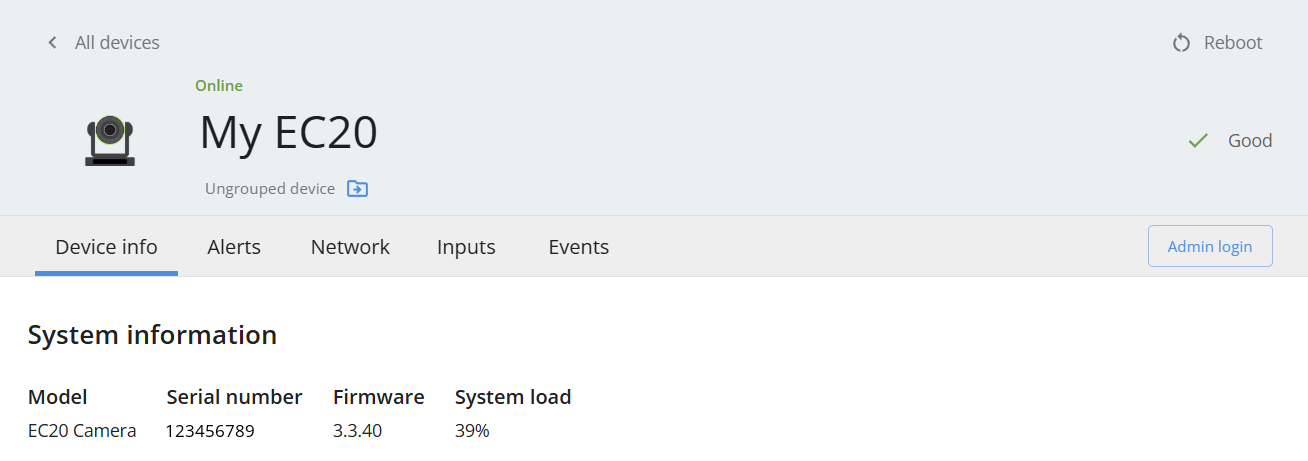
TIP: While the EC20 camera is paired, you can use the web interface to configure it. The changes you make update automatically in Epiphan Edge.
Pair Your EC20 camera using the pairing code
- Using the web interface navigate to the Epiphan Edge section on the left. On older firmware this option may not appear, update firmware as needed. The pairing code should appear near the Pair Device button. Copy the code for future reference.
- Using a web browser on your admin computer, log in to Epiphan Cloud at: go.epiphan.cloud, eu.epiphan.cloud, or au.epiphan.cloud.
- In the far-right corner of the header bar, click Pair device to pair your EC20 to your team.
- Enter the pairing code and a name for the device.
- (Optional) Create a group for your paired devices or add the device to an existing group. An Epiphan Edge Premium plan is required for this feature.
- Select Pair device. The Device Details page for the paired EC20 camera opens by default when you pair a device.
- Select different tabs to see more information about your EC20 camera. For example, select the Events tab to see any upcoming events.
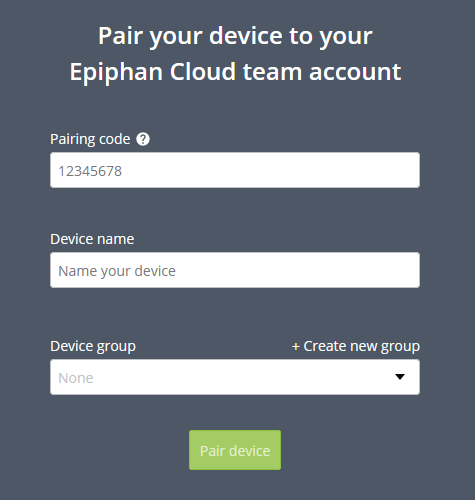
TIP: When you're logged into Epiphan Edge, you can manually pair a device at any time using the device's pairing code when you click Pair Device in the header.


 ™ and ©