Start and stop a Multitrack Recorder
You can start and stop multitrack recorders from the multitrack recorder's setup page using the Admin panel.
You can also start and stop multitrack recorders
The multitrack recorder number turns red to indicate it is recording. If the system runs out of storage space, the oldest recorded file is deleted to make room for the new recording.
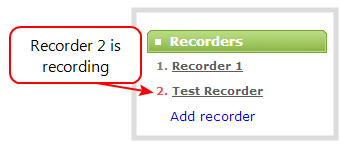
You can have multiple multitrack recorders and multiple channels recording all at the same time. The number of channels being recorded is shown below the Start and Stop buttons on the multitrack recorder's configuration page. You can select which channels to include in the multitrack recorder. See: Select channels to record on a Multitrack Recorder.
Start and stop a multitrack recorder using the Admin panel
- Log in to the Admin panel as admin or operator, see Connect to the Admin panel.
- From the Multitrack Recorders menu, select a multitrack recorder. The Multitrack Recorder Setup page opens.
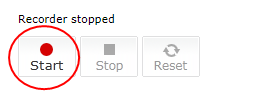
- Click Start to begin recording and click Stop to end recording.
You can navigate away from the page without affecting the recording.