Monitor channels and inputs
Channel preview thumbnails are a quick way to confirm that your video sources are working. And audio meters actively respond when there is an audio signal present. You can see those on numerous pages in Epiphan Edge, including the Devices Dashboard and the Device Details page when you select the Channels or Inputs tab.
Note: A high bitrate sent from a Pearl device may cause the channel preview to appear choppy.
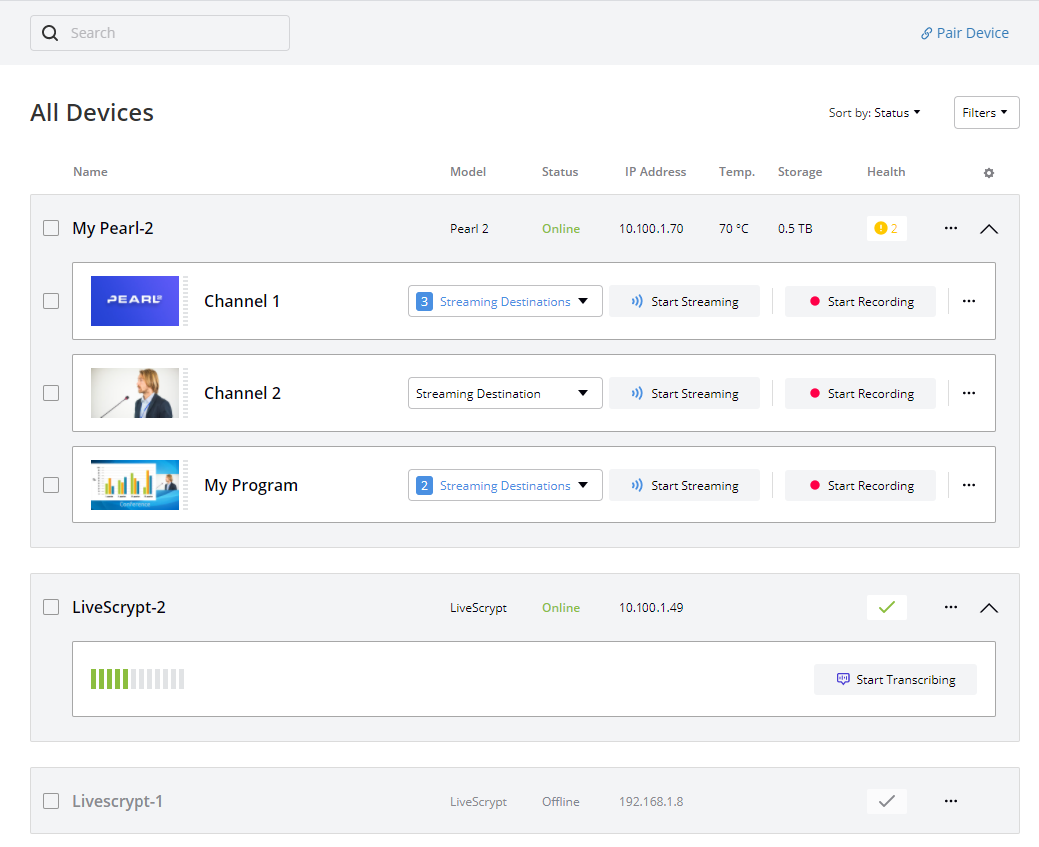
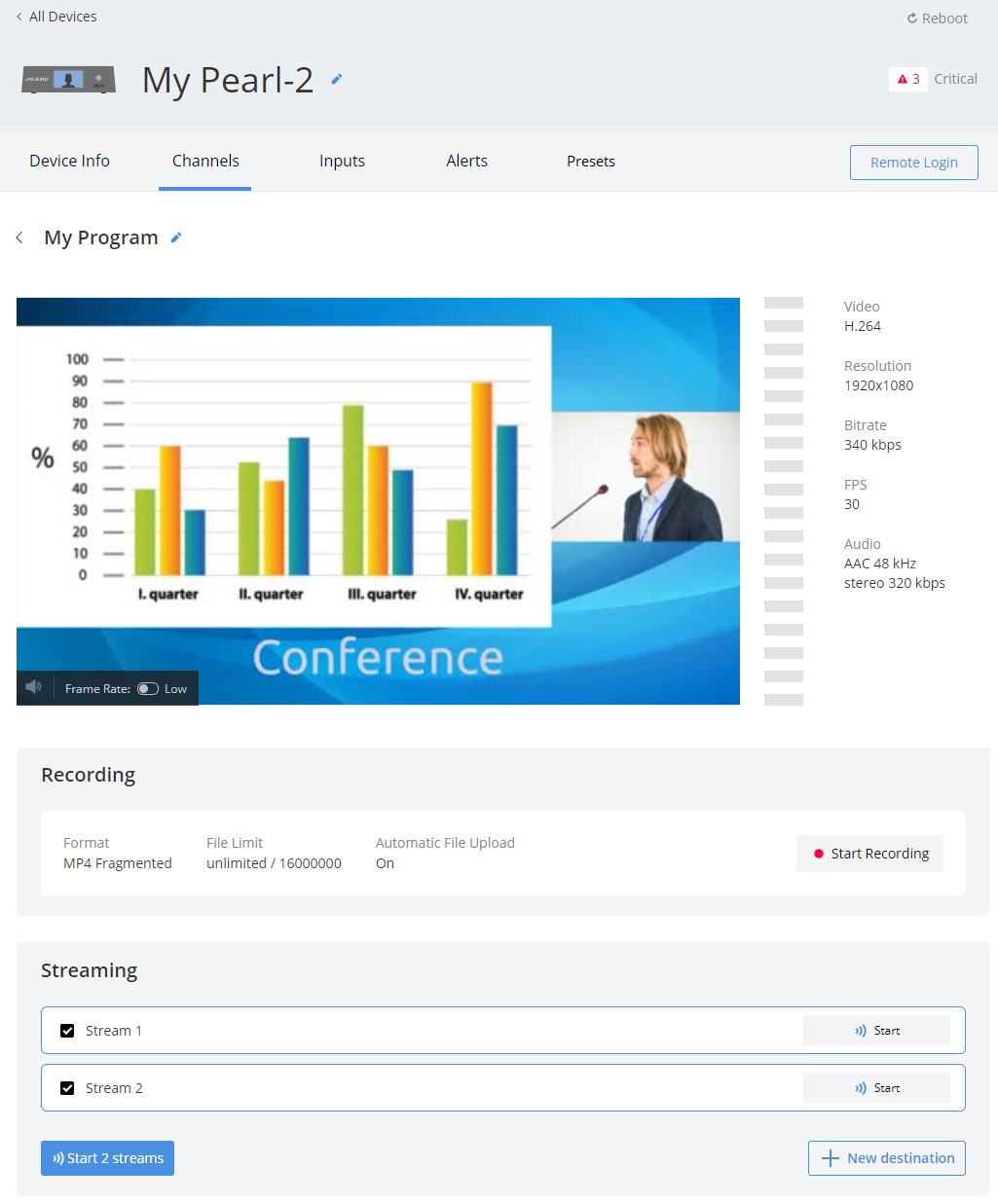
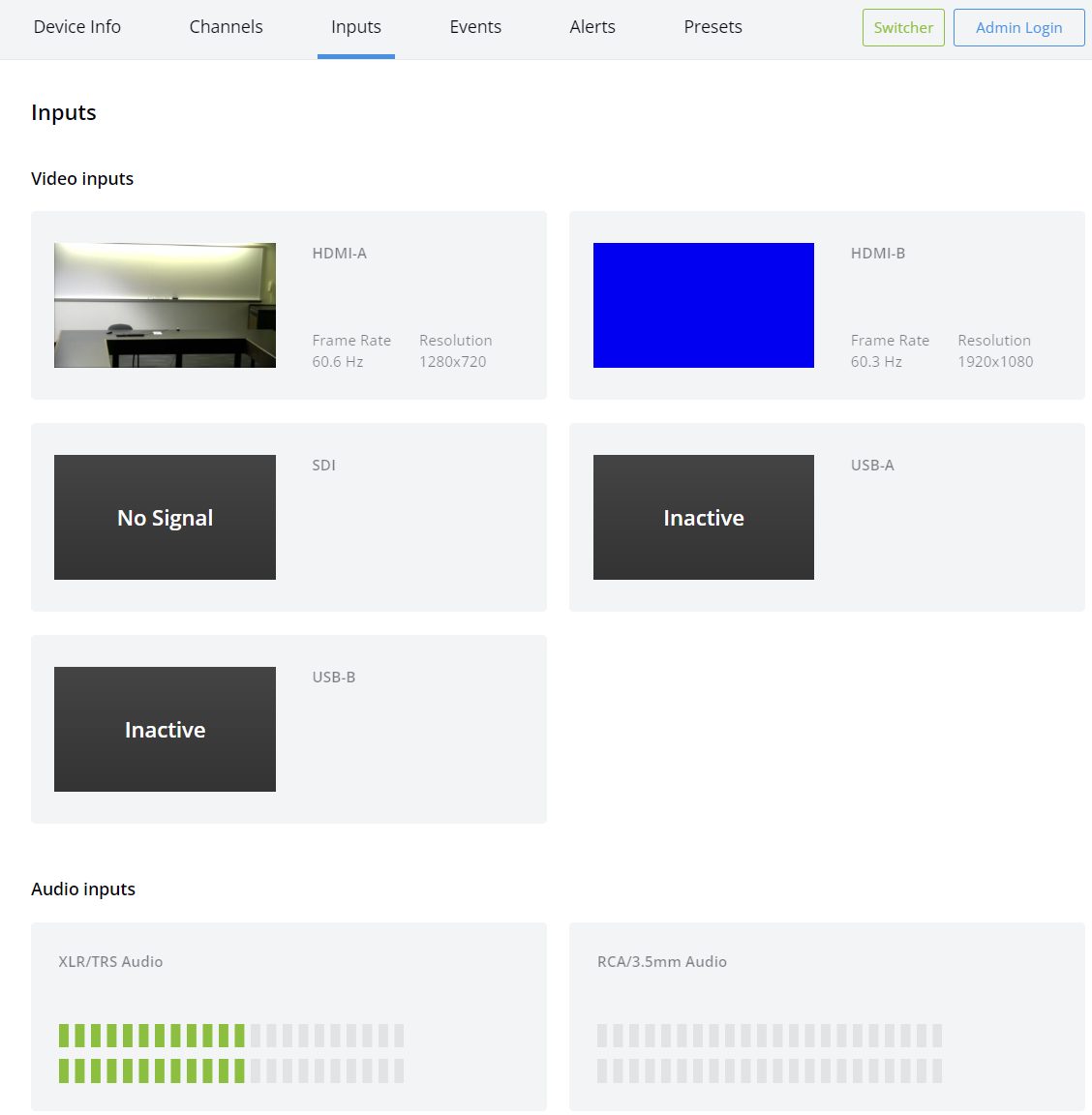
For Pearl family devices, details about video and audio input sources are found on the Channel Details page and the Inputs page. The Channel Details page provides a near real-time video monitoring experience with the option to view video in high definition.
| Channel Details page | Inputs page |
|---|---|
|
|
Monitoring channels and input sources for Pearl family devices
Monitor video and audio from the Channel Details page
- Open the Channel Details page, do one of the following:
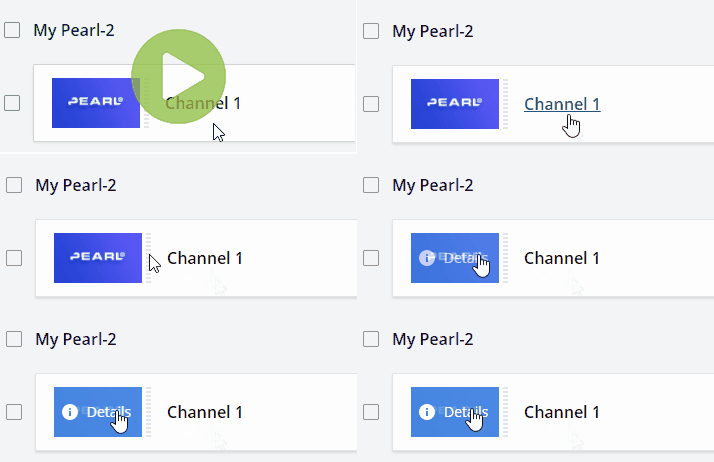
- From the Devices Dashboard, click the channel preview icon or click the channel name.
- From the Devices Details page, select the Channels tab to open the channels list, then click the channel preview icon. Video and audio sources configured for the channel are displayed for you to monitor.
Monitor HD video from the Channel Details page
- Open the Channel Details page, do one of the following:
- From the Devices Dashboard, click the channel preview icon or click the channel name.
- From the Devices Details page, select the Channels tab to open the channels list, then click the channel preview icon.
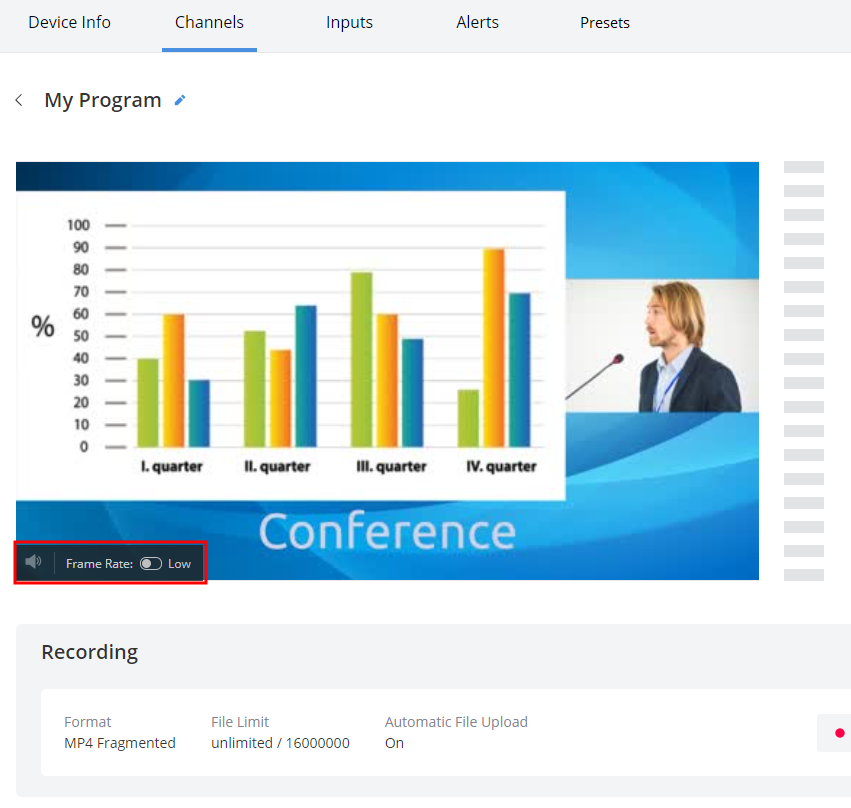
- From the Channel Details page, toggle the Frame Rate from Low to High using the switch in the bottom left corner of the preview window.
Monitor video and audio sources from the Inputs page
- From the Devices Dashboard, click the device name in the list or click the three dots at the end of the device's row and select Settings.
- From the Device Details page, click the Inputs tab to see the Inputs page.

 ™ and ©