Pair, unpair, and delete a device
A device pairing code is used to pair a device to an Epiphan Edge team.
- Pearl family devices: Get the pairing code from the touch or front screen depending on the model, you can also use the Admin panel.
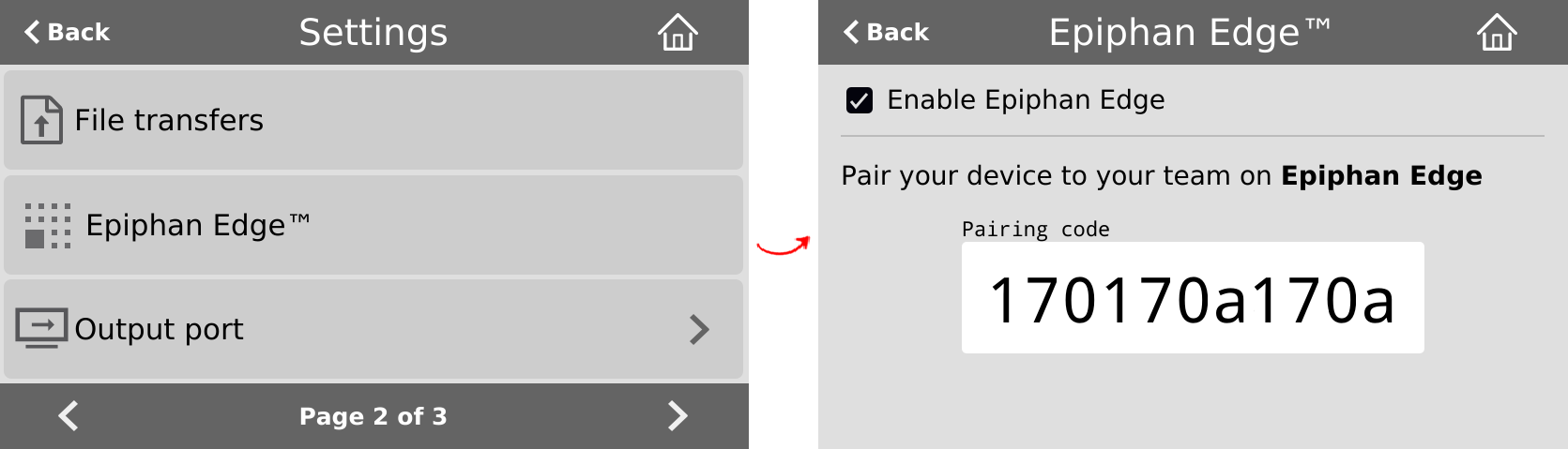
- Pearl-2 and Pearl Mini: Get the pairing code from the touch screen when you tap the Settings icon and select Epiphan Edge from the second page of settings or use the Admin panel.
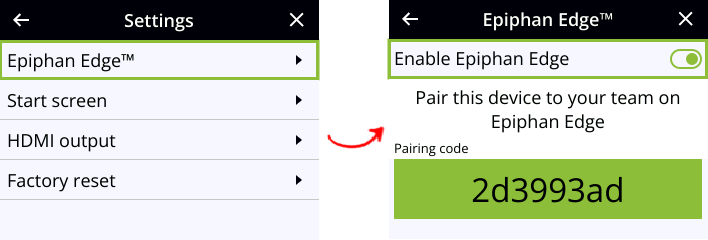
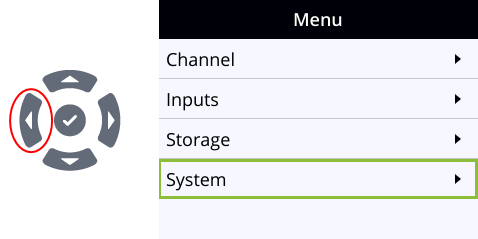
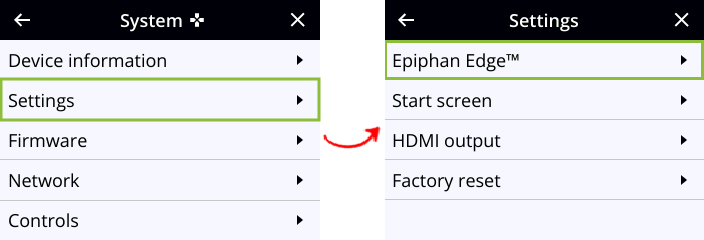
- Pearl Nano: Get the pairing code using the front screen menu when you select System > Settings > Epiphan Edge or use the Admin panel.
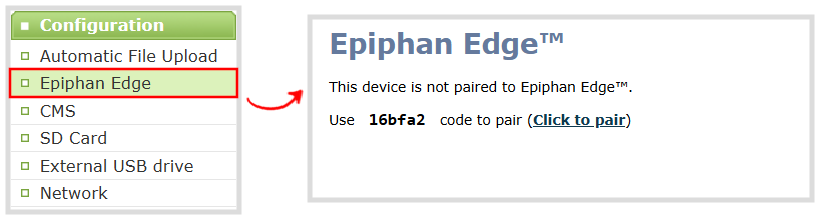
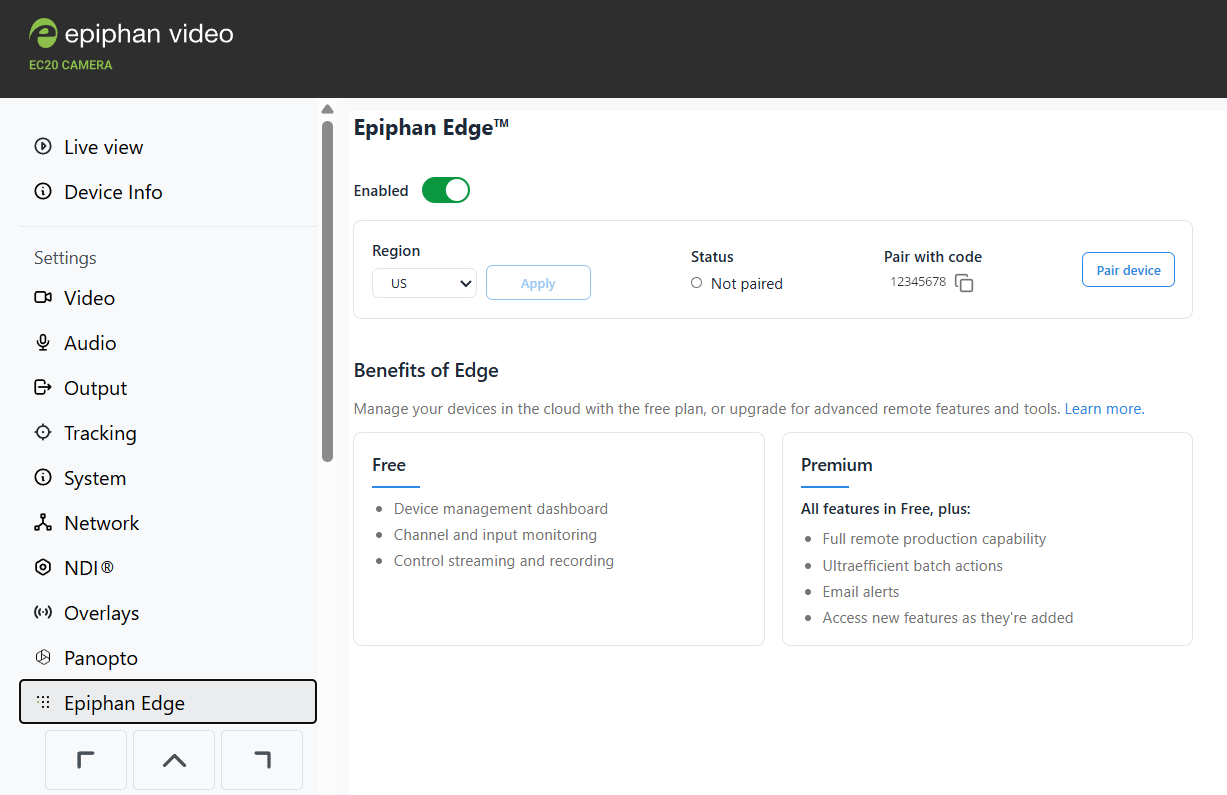
- EC20: Get the pairing code using the web interface when you click on Epiphan Edge on the left. You can also pair directly to Epiphan Edge from here.
| Pearl |
|---|
|
|
TIP: All team members can operate, pair, and unpair devices. With the Free or Premium plan, you can pair as many devices as you want to your team, but you can only pair a device to one team at a time.
Your default Epiphan Cloud team is chosen by default when you pair a device. The Epiphan Edge plan and services associated with the team determines which Epiphan Edge features are available while the device is paired. A device can only be paired to one team at a time. For more information about teams, see Set up and manage teams.
Unpairing a device makes the device instance permanently go offline in Epiphan Edge. You cannot access any Epiphan Edge-generated content associated with a device that is permanently offline. Deleting a device instance completely removes Epiphan Edge access to the device and deletes any Epiphan Edge-generated content associated with that device instance. If you pair the device again, a new device instance is created that has no association with any previous instances or the associated content.
Pair a Pearl family device using the Admin panel link
- Log in to the Admin panel on Pearl and click Epiphan Edge from the Configuration menu. The pairing code for your Pearl system is shown, as well as a link.
- Select Click to pair. The Epiphan Cloud login page opens on a new tab in your web browser.
- As soon as you log in to your Epiphan Cloud account, the device automatically pairs to your default team and the Device Settings page opens.
Pair Pearl-2 or Pearl Mini using the touch screen pairing code
- Using the touch screen on Pearl, tap the gear icon to open the Settings screen. Tap the arrow icon in the lower-right corner to go to the second Settings page and select Epiphan Edge to see the pairing code. Copy the code for future reference.
- Using a web browser on your admin computer, log in to Epiphan Edge at go.epiphan.cloud, eu.epiphan.cloud, or au.epiphan.cloud.
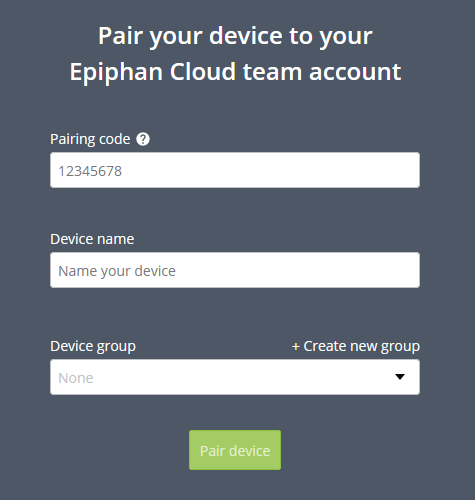
- In the far-right corner of the header bar, click Pair device to pair your Pearl family to your default team. To pair the device to a different team, select a different team from the navigation bar before you click Pair device.
- Enter the pairing code and a name for the device.
- (Optional) Create a group for your paired devices or add the device to an existing group. An Epiphan Edge Premium plan is required for this feature.
- Select Pair device.
Pair Pearl Nano using the front screen menu pairing code
- Press the left arrow key repeatedly on the control interface until the front screen menu displays.
- Use the arrow and check mark keys to select System. Then from the System screen, select Settings to open the Settings screen.
- From the Settings screen, select Epiphan Edge to open the Epiphan Edge screen.
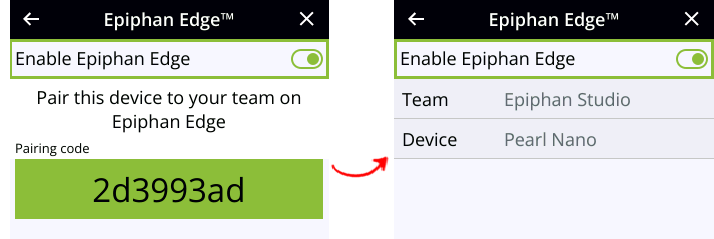
- If Pearl Nano is not currently paired to Epiphan Edge, the pairing code displays on screen.
- If Pearl Nano is paired to Epiphan Edge, the screen changes and displays the name of the device and the team it's paired with instead of the pairing code.
- Using a web browser on your admin computer, log in to Epiphan Cloud at go.epiphan.cloud, eu.epiphan.cloud, or au.epiphan.cloud.
- In the far-right corner of the header bar, click Pair device to pair your Pearl family to your default team. To pair the device to a different team, select a different team from the navigation bar before you click Pair device.
- Enter the pairing code and a name for the device.
- (Optional) Create a group for your paired devices or add the device to an existing group. An Epiphan Edge Premium plan is required for this feature.
- Select Pair device.
Pair your EC20 camera using the web interface link
- Log in to the web interface of your EC20 and click Epiphan Edge on the left side. On older firmware this option may not appear, update firmware as needed. The pairing code for your EC20 is shown, as well as a link.
- Click Pair device. The Epiphan Cloud login page opens on a new tab in your web browser.
- As soon as you log in to your Epiphan Cloud account, you'll be asked to confirm the Team, and the Device Group if using Premium Epiphan Edge, the device automatically pairs and the Device Details page opens.
- Select different tabs to see more information about your EC20 camera. For example, select the Events tab to see any upcoming events.
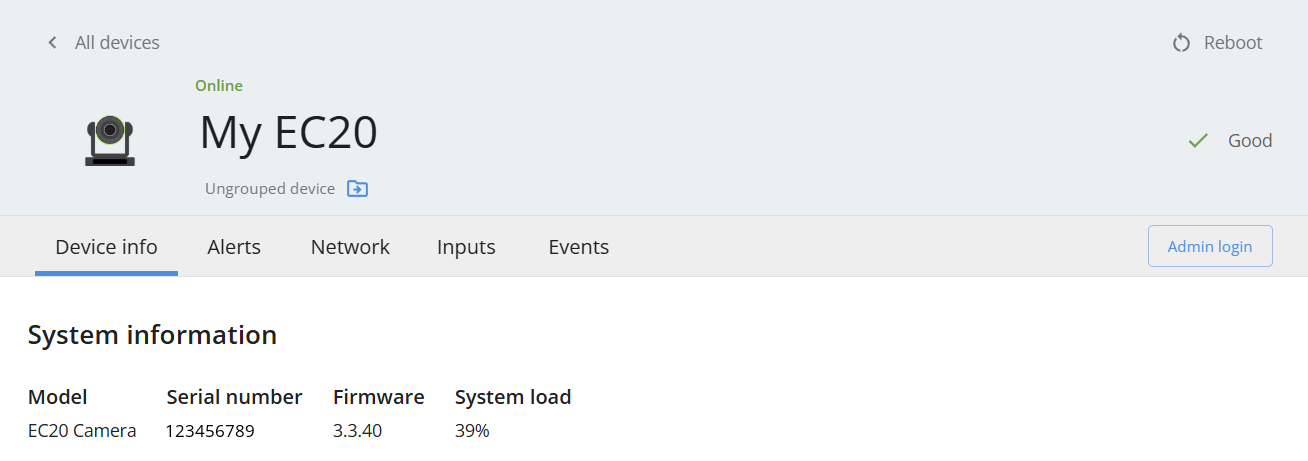
TIP: While the EC20 camera is paired, you can use the web interface to configure it. The changes you make update automatically in Epiphan Edge.
Manually pair a device in Epiphan Cloud using the pairing code
You need the device pairing code to perform this procedure.
- Log in to your Epiphan Cloud account. Go to: go.epiphan.cloud, eu.epiphan.cloud, or au.epiphan.cloud.
- In the far-right corner of the header bar, click Pair device to pair your Epiphan device to a team. To pair the device to a different team, select a different team from the navigation bar before you click Pair device.
- Enter the pairing code and a name for the device.
- (Optional) Create a group for your paired devices or add the device to an existing group. An Epiphan Edge Premium plan is required for this feature.
- Select Pair device.
Unpair or delete a device
Unpair or delete devices from the Devices Dashboard
To unpair or delete devices from the Devices Dashboard, do one of the following:
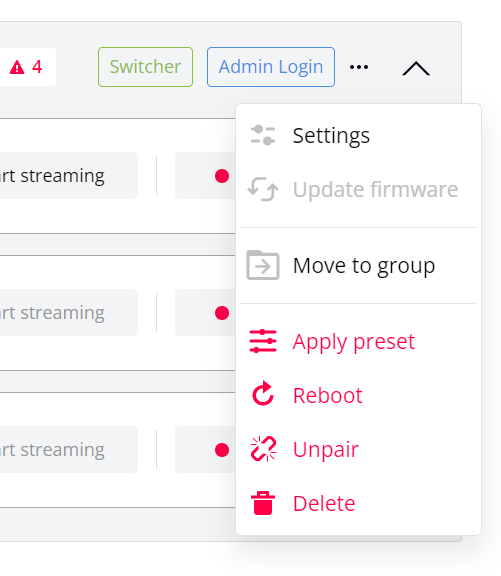
- Click the three dots at the end of a device's row and select either Unpair or Delete. Confirm your selection when prompted.
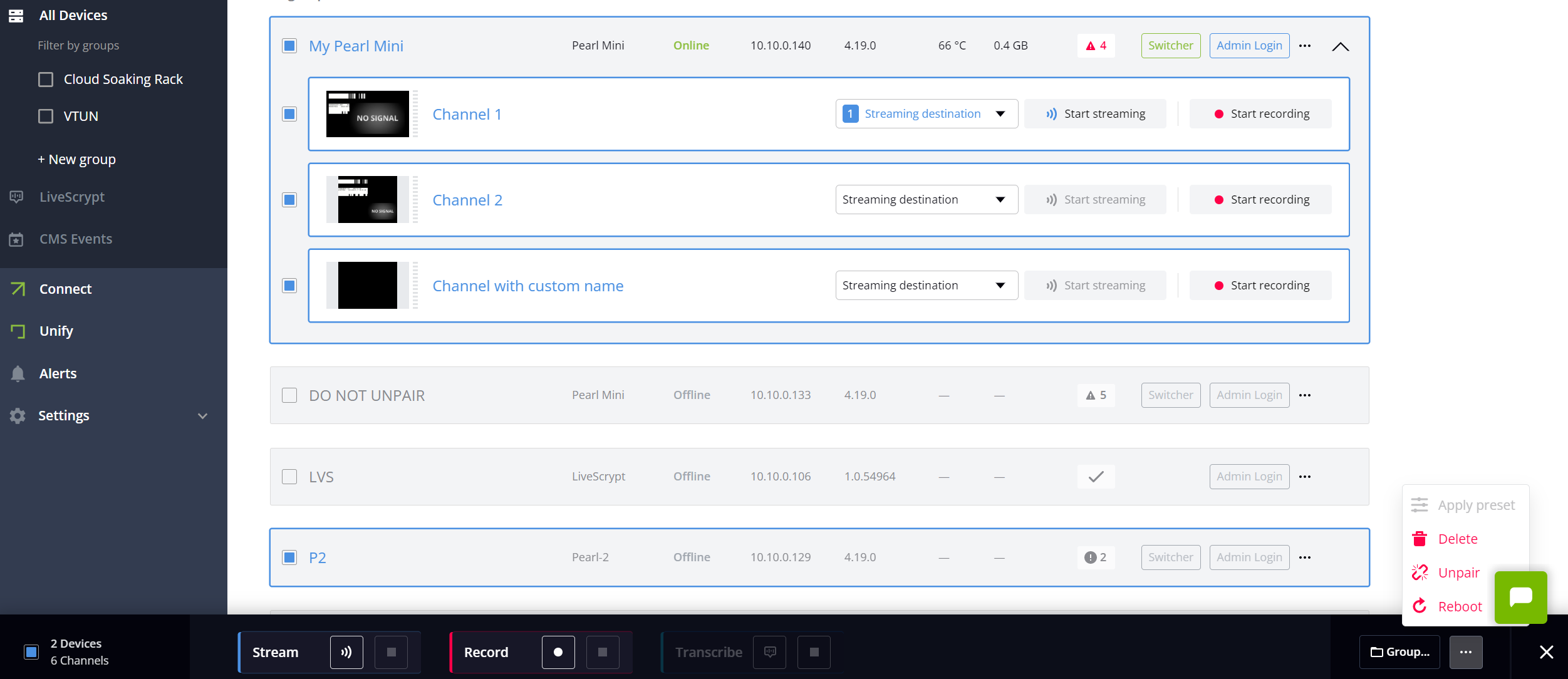
- Select multiple devices. Then, click the three dots that appears in the banner at the bottom of the page and select either Unpair or Delete. Confirm your selection when prompted.
- Select a group, then click the three dots that appears in the banner at the bottom of the page and select either Unpair or Delete. Confirm your selection when prompted. Alternatively, you can select grouped devices individually.
Unpair a Pearl family device using the Admin panel link
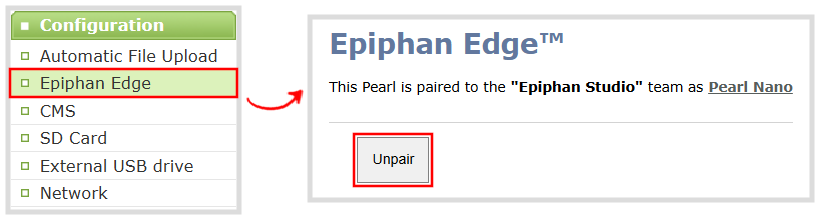
- Log in to the Admin panel on your Pearl family device and click Epiphan Edge from the Configuration menu.
- Select Unpair and confirm your selection when prompted.
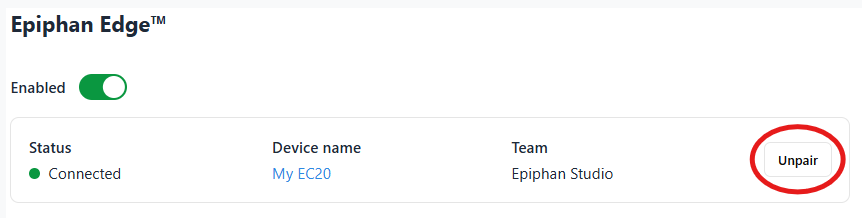
Unpair an EC20 camera using the web interface link
- Log in to the web interface on your EC20 camera and click Epiphan Edge from the left side menu.
- Select Unpair and confirm your selection when prompted.
Unpair multiple devices
- From the Devices Dashboard, select multiple devices. Then, click the three dots that appears in the banner at the bottom of the page and select Unpair. Confirm your selection.
Unpair multiple devices in a group
From the Devices Dashboard, choose the group of devices or select individual devices in the group. Then, click the three dots that appears in the banner at the bottom of the page and select Unpair. Confirm your selection.

 ™ and ©