Update firmware using the AV.io+ Config tool
When new firmware is available, you can load this firmware onto your AV.io HD+ using the AV.io+ Config tool and the steps below. If you register your product and agree to be notified of product updates, you’ll receive an email when there is a firmware update available for download.
Attempting to update firmware while running virtual machines will result in firmware upgrade failure.
For updates to persist after power cycling, please allow 5 seconds before disconnecting or restarting device.
To update firmware using the AV.io+ Config tool:
- If you haven't already done so, download and install the AV.io+ Config tool. See Install the AV.io+ Config tool.
- Download the firmware update file from the Epiphan website, as described in your firmware update notification email or discussion with your vendor.
- Connect your AV.io HD+ device to your computer, laptop, or notebook.
- Open the AV.io+ Config tool.
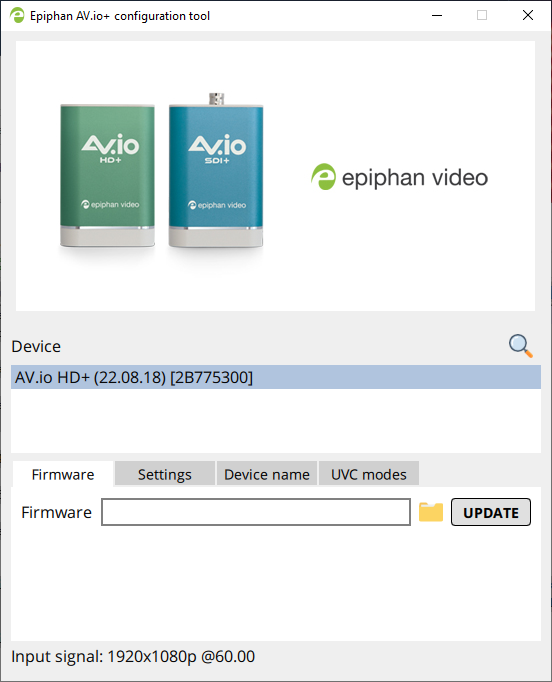
- Select your AV.io HD+ device from the list under the Devices heading.
If your AV.io HD+ device is not displayed, press the Refresh icon to refresh the list of connected devices.
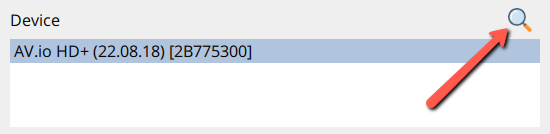
- Using the diagram below, check the current firmware version of your AV.io HD+. You can see the current version of the firmware in parenthesis next to the name of your device in the Config Tool. If it is the same version as the new firmware you downloaded, there is no need to do the firmware update.
- If it isn't already selected click the Firmware tab
-
Click the folder icon to navigate to the saved location of the firmware, and click Update to update your video grabber to the selected firmware; an update bar appears and displays the progress of the update.
- Please note, there will be two files in the compressed firmware file, a .bit and .img, perform this step with both files.
Do not disconnect your AV.io HD+ at any point during the update process! Doing so may cause irrevocable errors and/or permanently damage the device.
-
When the update is finished the progress bar turns green and displays “Update Completed” (Note: the firmware update will not automatically be reflected in the Devices list unless the Refresh icon is clicked). You may now safely disconnect your AV.io HD+ if needed.
When updating firmware on a Mac, the “Update Completed” text will not be displayed. The firmware upgrade is complete when the progress bar fills the width of the AV.io Config window and the window contents are no longer greyed out.
